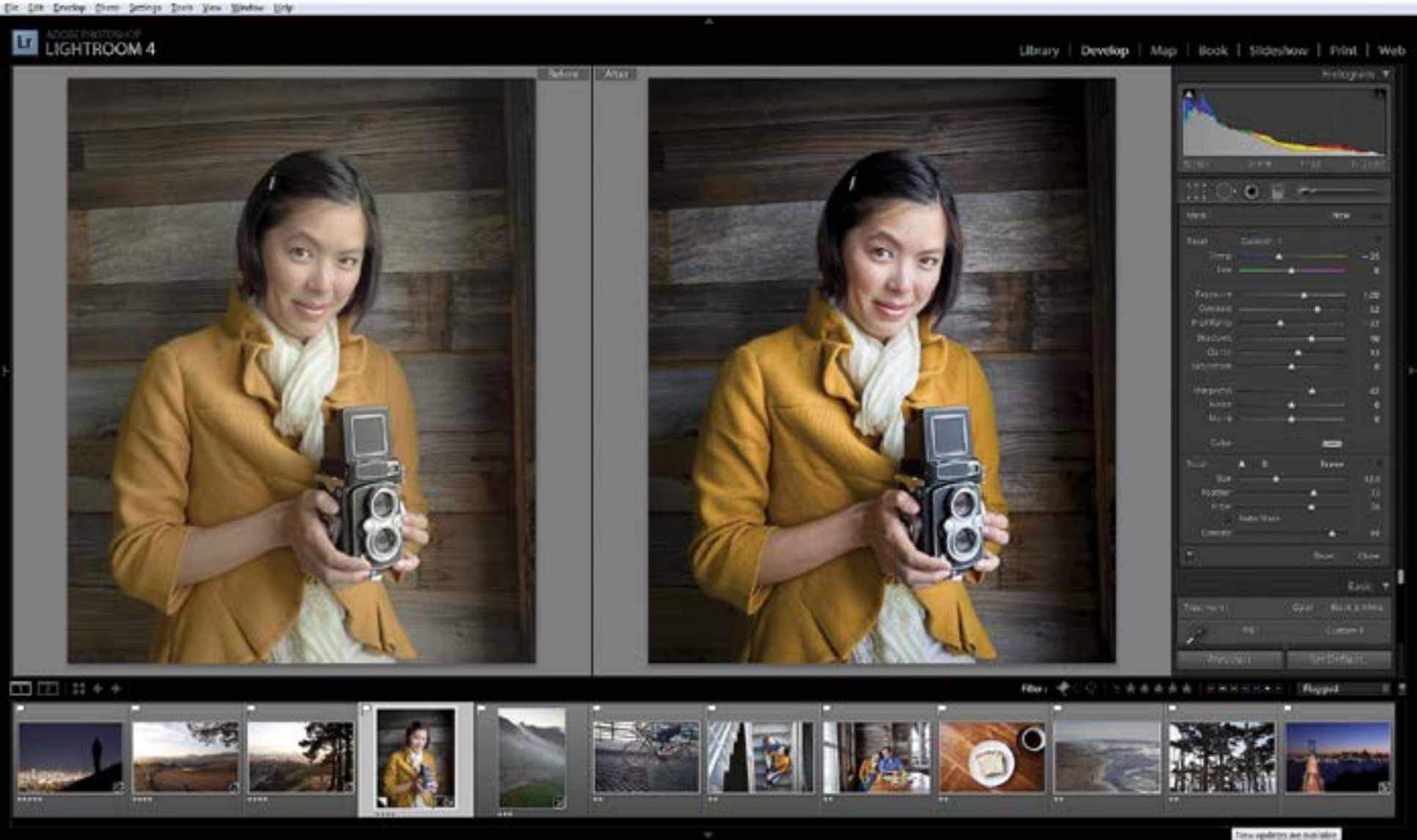
With the recent release of its flagship image cataloguing and editing software, Photoshop Lightroom, Adobe has once again raised the bar to significant new heights. A plethora of novel features await those looking to upgrade or contemplating a switch from a competitive product; so, let’s just dive right in!
Video Versatility
Lightroom has always been an outstanding non-destructive image editor, but until version 4, lacked all but the most rudimentary support for video — that’s all changed! Not only does the software do an excellent job at cataloguing all your video clips, now you may also edit them using many of the same great tools you’re used to employing on your photographs.
First of all, there’s an intuitive interface for trimming your clips: simply drag to the desired locations on either end of the segment and you’re done. Simply mousing over the video thumbnail (which you may also select by way of the ‘select poster’ menu function) allows you to scrub back and forth to give you a quick view of the content. The interface is clean and gets out of your way when you need more screen real estate for video edits… which is really where the software begins to shine.
You can use familiar controls to adjust exposure, contrast, white balance, vibrance, white and black levels, temperature, and tint for the entire file, all in a non-destructive manner, quickly and easily from the push-button interface. Additionally, just as with images, you are able to make different versions of your videos using virtual copies… which don’t take up a ton of extra space on your hard drive, as they are simply collections of metadata which refer back to the original file. This is a tremendous improvement from the previous version and will definitely be a welcome change for all the mixed media professionals and photojournalists out there who are increasingly required to shoot video as well as still imagery… not to mention everyone else!
Cataloguing video is a snap too. Not only are you able to use all the standard metadata filters to narrow down your selection, but if you’re viewing a folder of both video and photographic content, you may view one or the other via a single button push in the attributes menu, or see all your videos by clicking on the Video smart collection — handy.
Blurb Books
Thousands of photographers utilize Blurb’s excellent self-publishing service for the creation of unique coffee table books featuring their own work. We’ve used the company many times and have been consistently pleased with the exceptional hardcovers we receive of our finished work.
Over the years, Blurb’s custom book design software has steadily improved; however, in terms of workflow, has always been a bit of a hassle — given your means of selecting and organizing images for publication was within another application. Well, say goodbye to that tedious back and forth; Blurb’s entire application, including templates, type control, and captions is now resident within Lightroom! You even get an automatic preview of the projected cost of your book which updates automatically as you make changes.
Once you’re all finished with your design (or you can even have Lightroom do it for you), simply press the “Send Book to Blurb” button and you’re off to the races. Blurb integration is an outstanding addition; and we at DarkroomPro look forward to using it frequently.
Geo Goodness
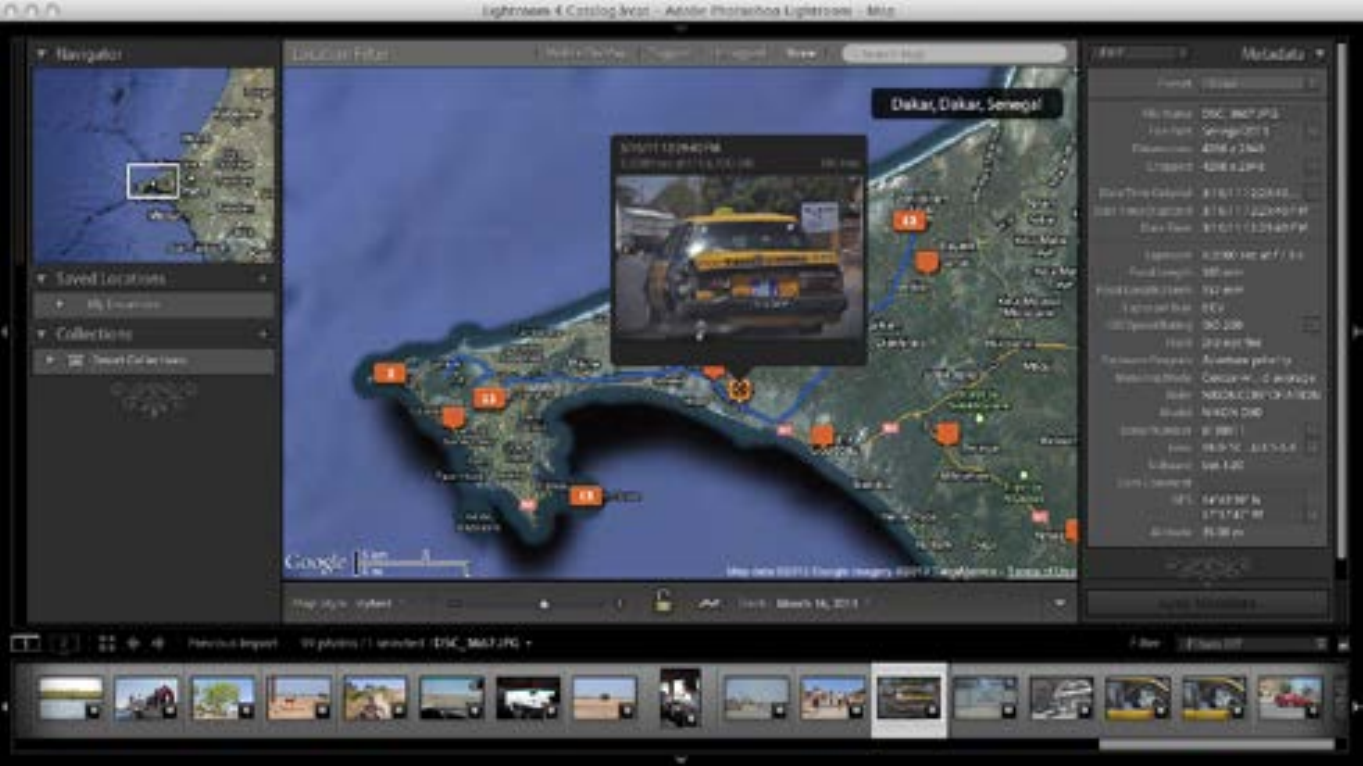
Those of us with smart phones may not be aware of the fact that with GPS functionality enabled, the camera app geotags your images with the coordinates of the shot location; and you may subsequently use this data in support of organizing your photos by geographic criteria.
While GPS is ubiquitous in the smart phone world, it is significantly less so among DSLRs, and usually involves an add-on device which often occupies the hot shoe. Lightroom’s ‘Map’ module not only allows you to locate your images in physical space using embedded coordinates, but in their absence, circumvents this difficulty by allowing you to manually add custom locations, and drag and drop collections of images directly to them. These custom map areas can be as broad or specific as you like… anywhere from let’s say a country or city, to a single spot at an intersection.
Once organized in this manner, you may zoom into any section of the world map and click on the icon representing the photographs shot at that location. This action spawns a little window containing thumbnails of the associated images which you may quickly cycle through — double clicking to bring any to the foreground in the ‘Library’ module. You may also assign large numbers of images to a general location, and then drag and drop individual photos to specific spots one by one as you cycle through the preview thumbnails.
A great trick to use if you do have a smart phone which features GPS functionality, while a DSLR that doesn’t: take a quick reference photo with your phone when you first move to a new location, and use that info in Lightroom to thereafter geotag your DSLR images. It will save you a lot of time!
While we’ve only just scratched the surface of what can be done in the new ‘Map’ module, we think you’ll agree that it’s a fun and highly useful addition to Lightroom.
Dramatic Developments
Of course, the heart of Photoshop Lightroom is the ‘Develop’ module; and it definitely hasn’t been neglected in this comprehensive update. Utilizing Adobe’s new RAW processing engine, Lightroom 4 enjoys significant improvements over its predecessors in image processing power and flexibility.
One of the first changes you’ll notice is the absence of certain sliders and the addition of others. Also, you’ll see that the order has been altered. While order may not seem important, you have to remember that Adobe recommends you make your adjustments from top to bottom to achieve the best image quality as an end result… so these changes aren’t arbitrary.
Gone are the Recovery and Fill Light sliders, the former being replaced with Highlights while the latter with Shadows. In addition, you’ll see the Brightness slider has been removed from its traditional placement next to Contrast, while a new slider named ‘Whites’ has been added to the Tone panel. These aren’t just the same functions renamed, but affect the image differently as well.
Highlights, for instance affects a wider range of tones and allows you to enhance bright tones as well as adjust those that may be clipped downward (which was the sole purpose of Recovery). Similarly the new Shadows control moves in both positive and negative directions unlike its predecessor, Fill Light, and also corrects some of the artifact issues created by this control in Lightroom 3.
In addition to these alterations, Lightroom has dramatically improved the Clarity control. Unlike Lightroom 3’s problematic clarity adjustments, which were prone to halos and other artifacts, 4 has completely overhauled the algorithm, all but eliminating these issues — even at maximum strength settings.
Another feature that photographers have been asking for since Lightroom’s inception is channel specific tone curve adjustments. Having gotten used to these in Photoshop, many pros particularly missed their presence in Lightroom, and bemoaned the round-trip excursion required to make simple channel alterations. Well, apparently, ask and you shall receive! While their presence isn’t immediately obvious, you merely have to click the box at bottom right in the Tone Curve dialogue to enable point curves, which allows you to subsequently change the channel from RGB to any of its constituents. This is an incredibly powerful and time saving addition to the application which, while a long time coming, is definitely welcome.
Final Thoughts
There are so many new features and improvements to existing ones, we could probably go on for quite a few more pages: emailing photos directly from Lightroom, huge improvements to chromatic aberration adjustments, all new graduated filter and adjustment brush functionality, wider dynamic range extraction from existing files, soft proofing, and much more… however, suffice it to say this is by far Adobe’s best effort to date; and we’ll be featuring many of these within our pages in future issues.
Hat’s off Adobe! We’re not sure what you could possibly pack into your next version, but if it’s anything like its latest (now version 4.2), we’re prepared to be blown away.